Here is a simple, step-by-step guide to installing the Redbox TV app on your Amazon Fire TV Stick.
Step 1: Install the “Downloader” App
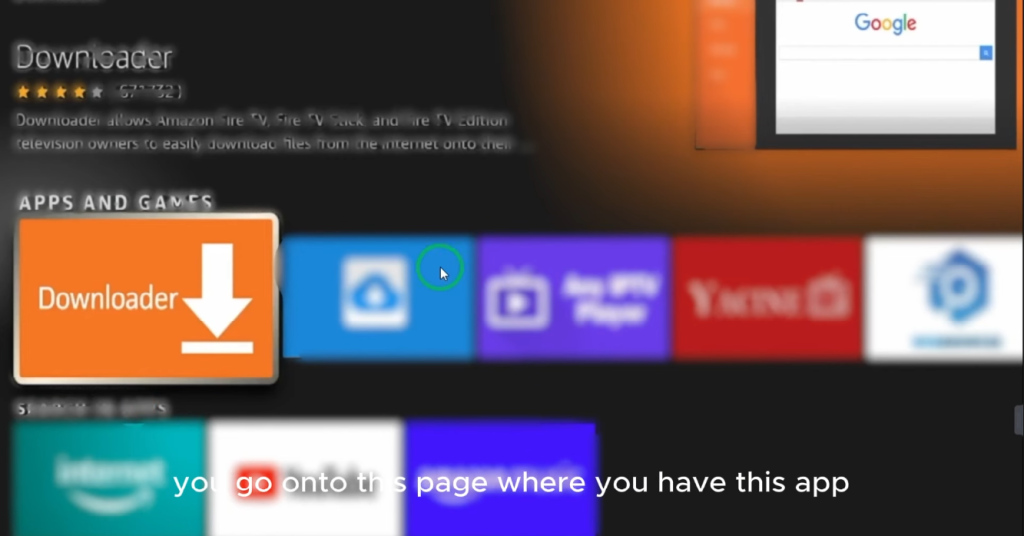
- From your Fire TV Stick’s home screen, use the search bar at the top.
- Type in
Downloaderand select it from the search results. - You will see an app with an orange icon. Select it and click “Download” or “Get” to install it. Since I already have it installed, mine shows “Open.”
Step 2: Enable Developer Options & Unknown Sources
Before you can install apps from outside the Amazon Appstore, you need to change a setting.
- Go to Settings on your Fire TV Stick.
- Scroll to and select “My Fire TV.”
- Choose “Developer Options.”
- If you don’t see “Developer Options,” go to “About” first. Then, select “Fire TV Stick 4K Max” (or your specific model) and click on it seven times until you see a message that “Developer Options” have been enabled. Then, go back to the previous menu.
- Inside “Developer Options,” select “Install Unknown Apps.”
- Find the “Downloader” app in the list and turn its permission ON.
Step 3: Use Downloader to Install Redbox TV
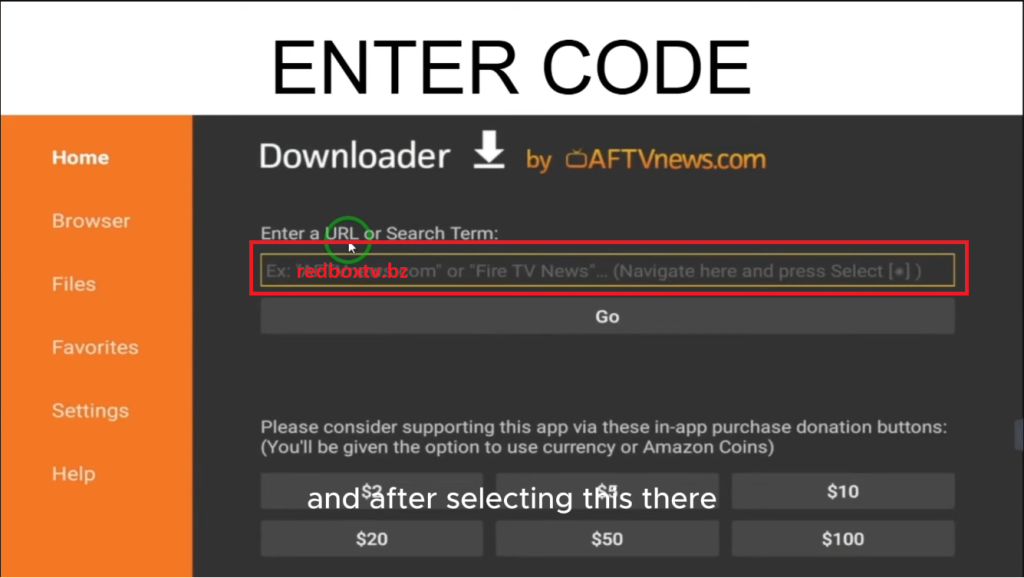
- Open the Downloader app. You might see a prompt to allow access to media—select “Allow.”
- You will see a field to enter a URL or a code. Type in the code or URL provided for Redbox TV and click “Go.” ( https://redboxtv.bz/ )
- The app file (APK) will begin to download.
- Once the download is complete, an installation window will appear. Select “Install.”
- The installation will take a few moments. When it’s finished, you can select “Done.”
Step 4: Find and Open Redbox TV
Go back to your Fire TV home screen and navigate to “Your Apps & Channels.” You will find the Redbox TV app installed there and ready to use.