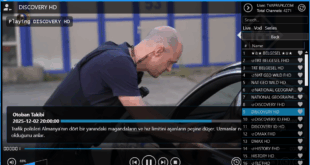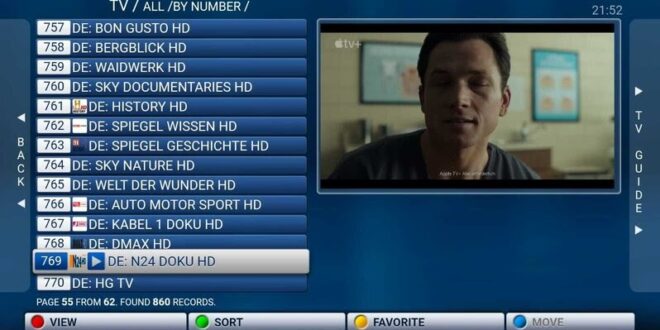
Getting the STBemu codes on your Amazon Fire Stick to enjoy your favorite content is quick and easy. Here’s how:
A Quick Reminder: Before we continue, check out insiderstreaming.com for IPTV reviews.
Step 1: Get the Downloader App
- Go to the “Find” section on your Fire Stick home screen and search for “Downloader.”
- To search faster, you can press and hold the Alexa button on your remote and say “Downloader.”
- Select the Downloader app from the results, click “Download,” and then “Install.”
Step 2: Enable Permissions for Downloader
- Once installed, open the Downloader app and click “Allow” when prompted, then click “OK.”
- To allow Downloader to install apps from outside the Amazon App Store, you need to grant it a special permission.
- Go to Settings > Applications > Manage Installed Applications > Downloader.
- Click on “Install unknown apps” and turn the permission ON.
Step 3: Download STBemu codes
- Now, go back to the Downloader app.
- Click on the search bar and enter the URL for the Insider Streaming IPTV App Store.
- This will direct you to a store where every app is not only free but has also been verified by the Insider Streaming team.
- Find and download the STB Emulator app (or any other app you need).
Step 4: Install and Configure STB Emulator
- After the download is complete, click “Install.”
- Once the installation is finished, click “Open.”
- We will now set up the STB Emulator to work with your IPTV service provider.
- Click on “Configure Application,” then go to “Profiles” and select “New Profile.”
- Navigate to “Portal Settings” and then “Portal URL.”
- Remove the default URL by clicking “Clear” and carefully enter the portal URL provided by your service provider.
- Click “Next” or press the corresponding button on your remote to save the changes.
Step 5: Activate Your Service
- The final step is to provide your device’s MAC address to your service provider for activation.
- To find your MAC address, press the back button on your remote to go to the main menu of the STB Emulator app.
- Scroll down to “STB Configuration”; your MAC address will be displayed here.
- Provide this MAC address to your service provider.
- Once they have activated your service, simply reopen the STB Emulator app to start enjoying your favorite content.


Stbemu Codes 27/10/2025
1 file(s) 3.54 KB
Download